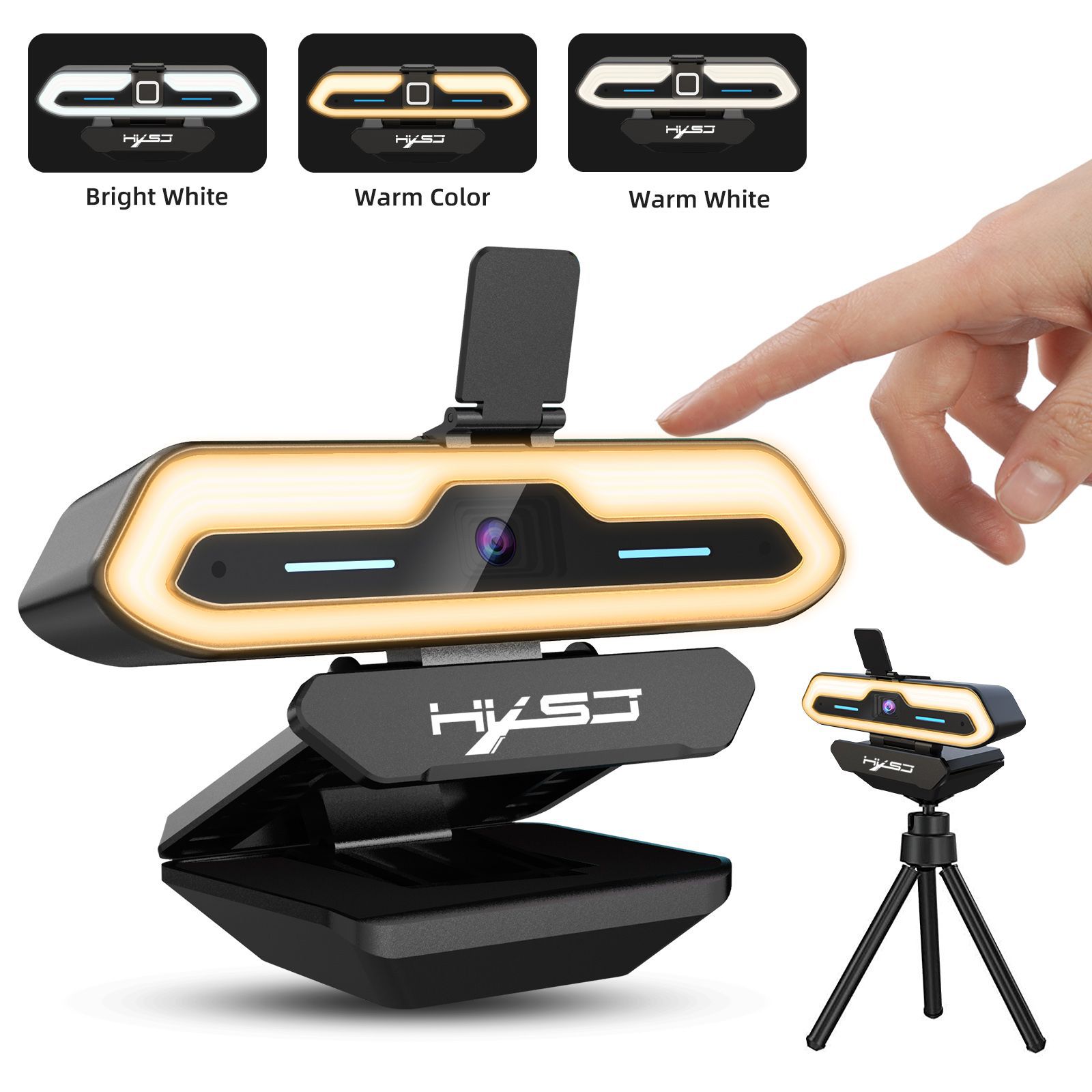
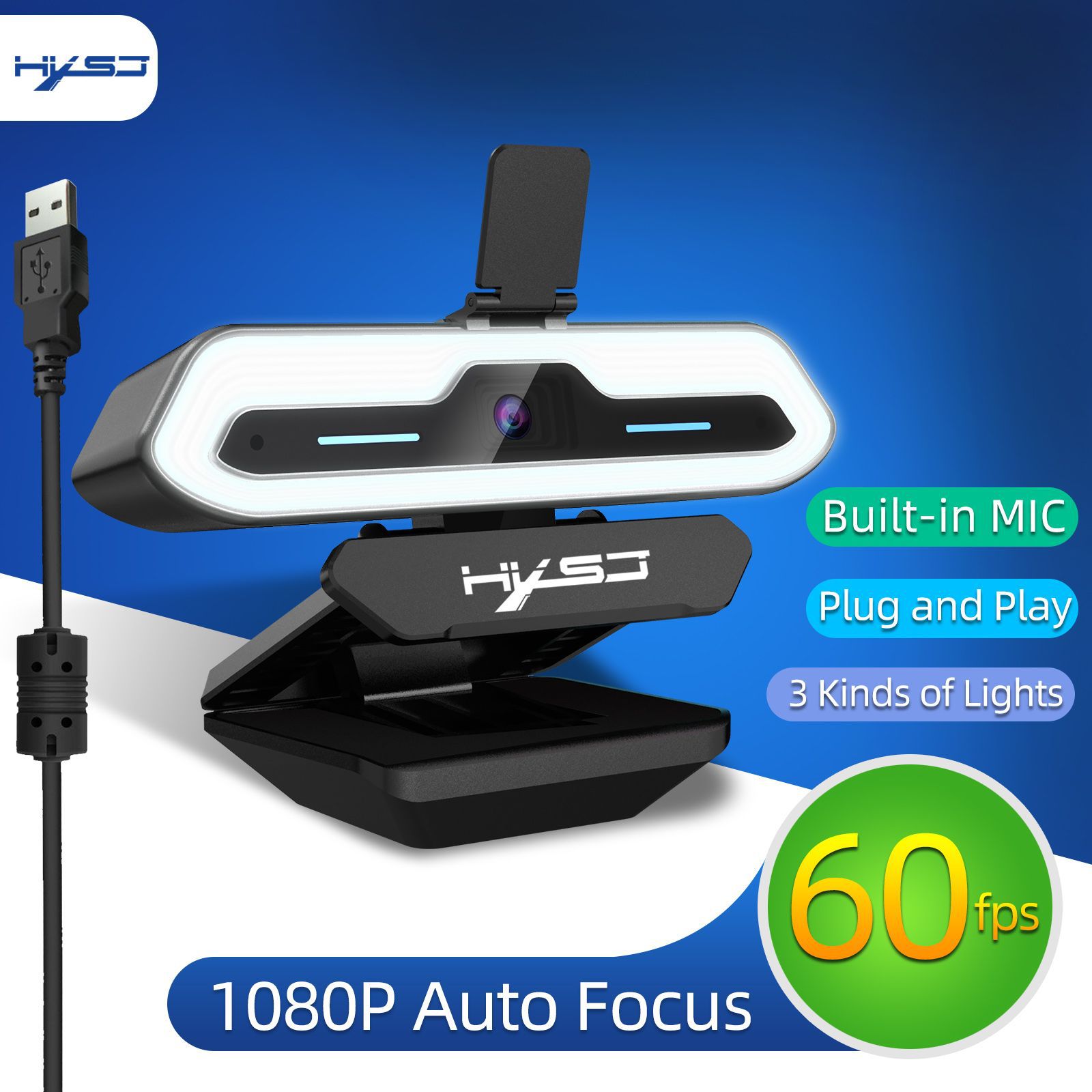
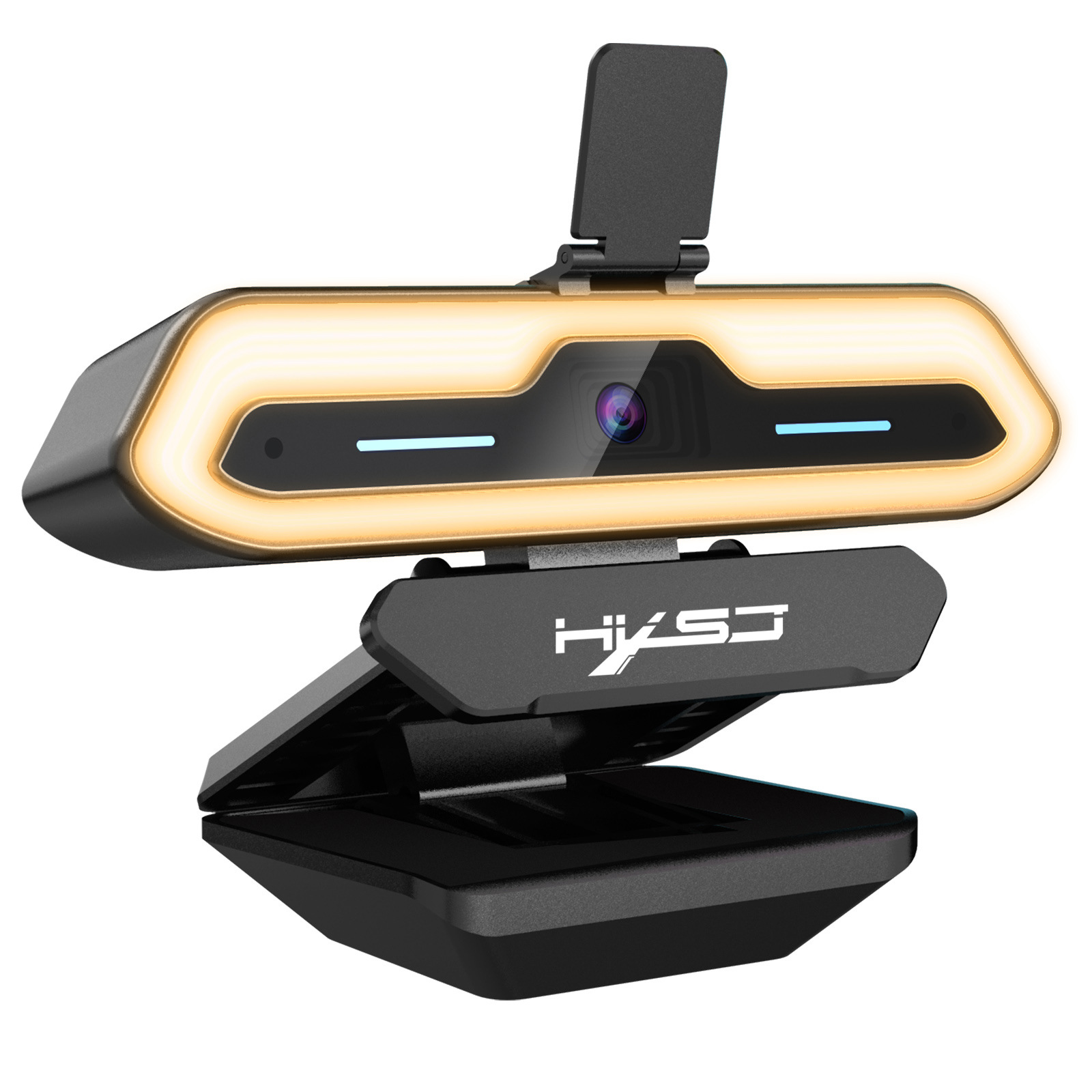
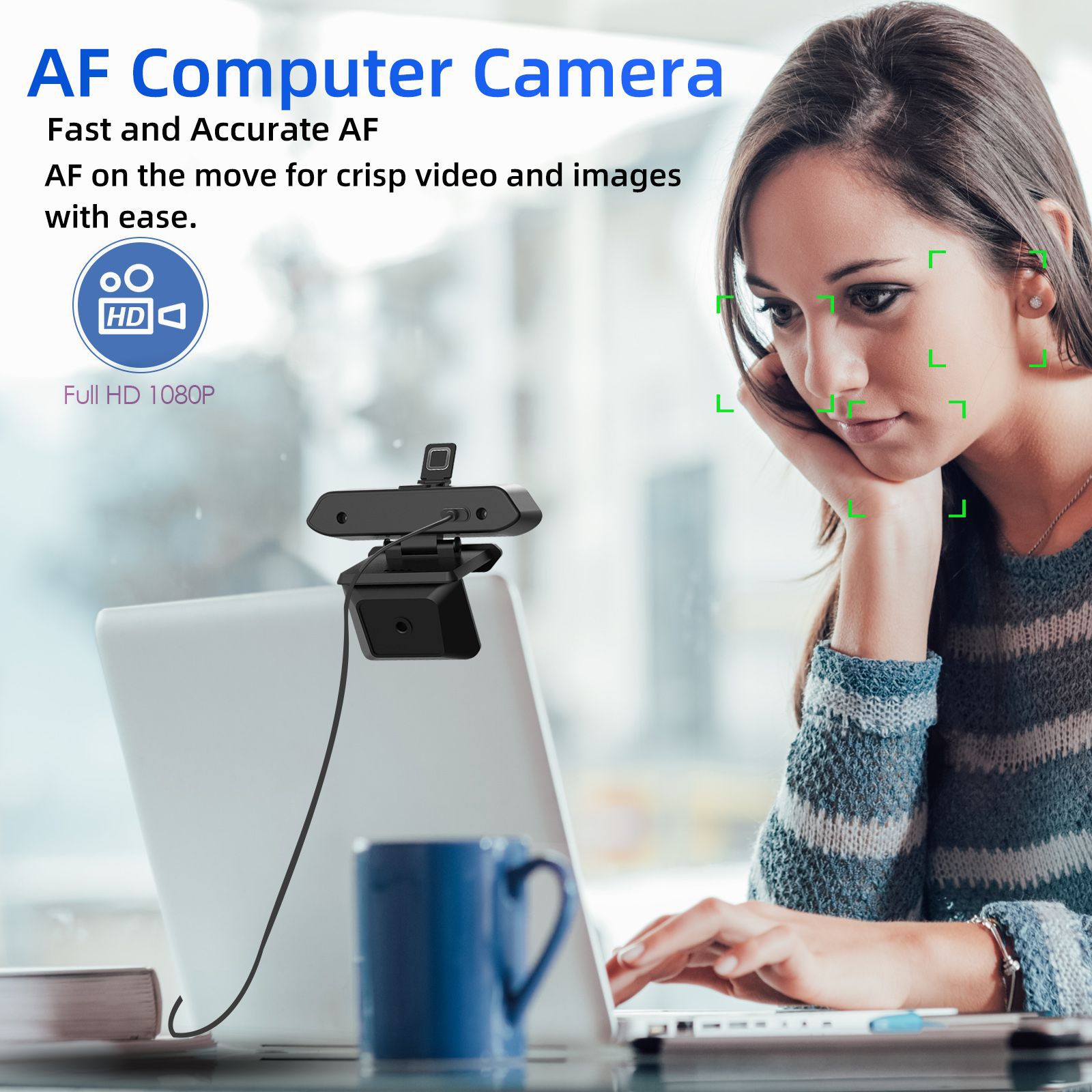
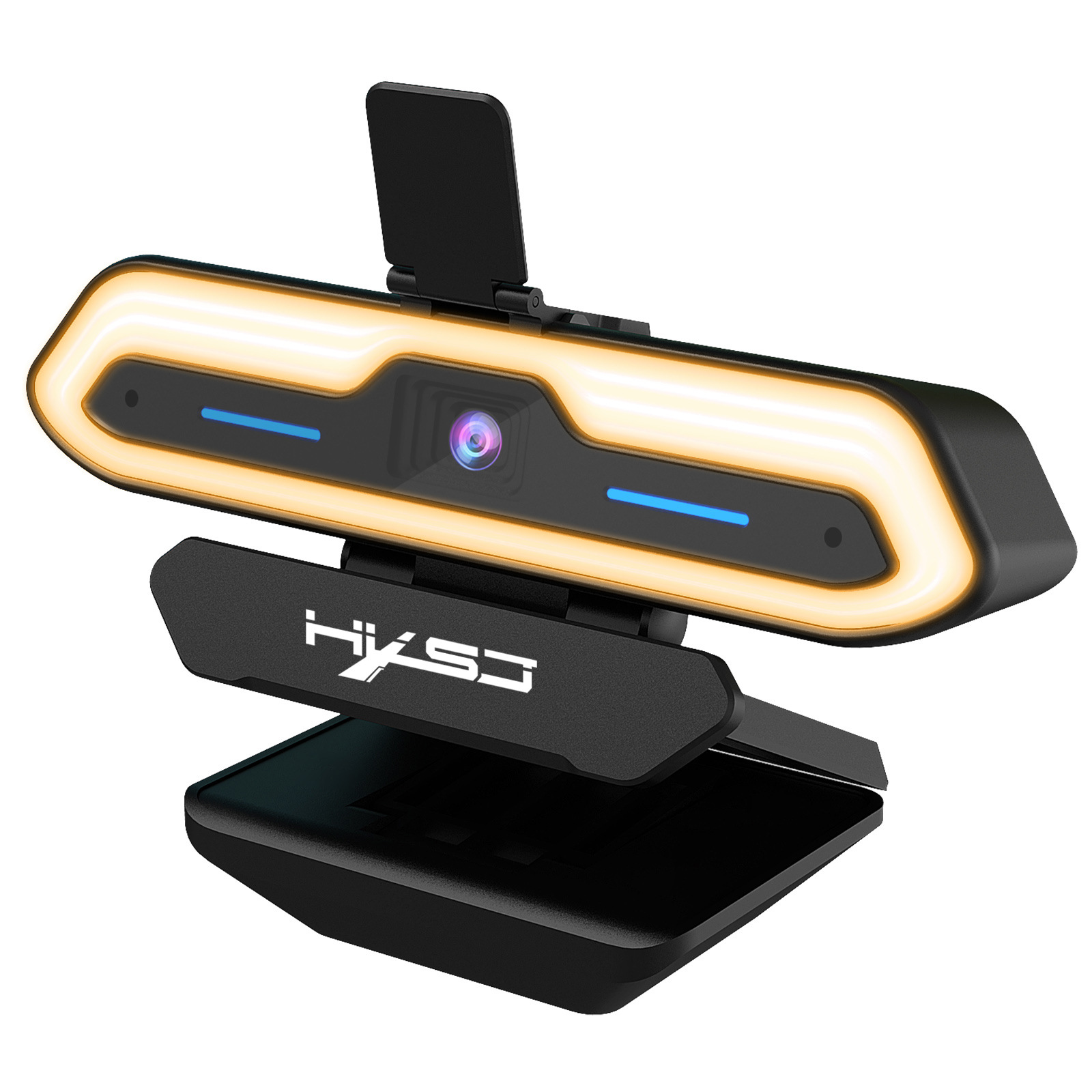
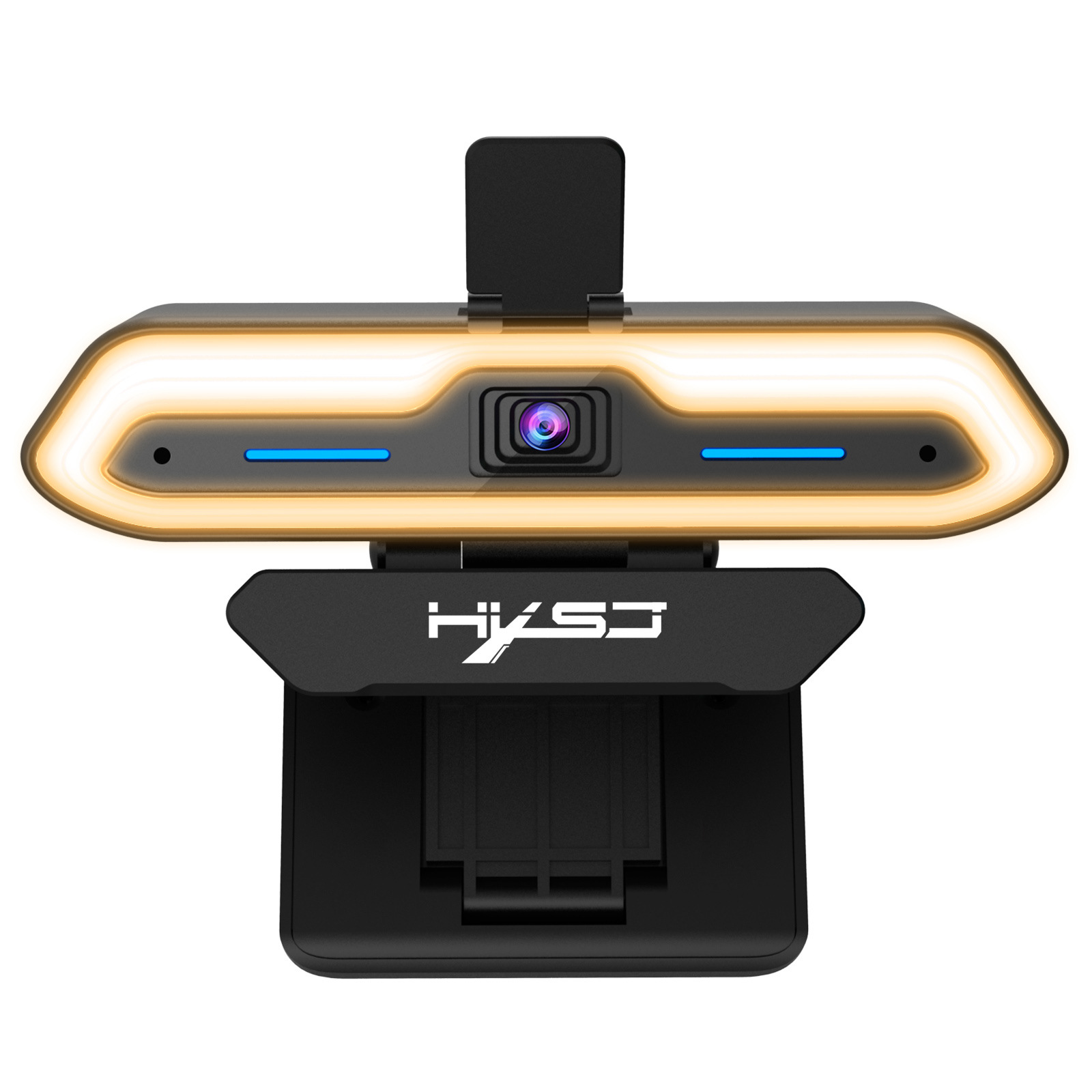
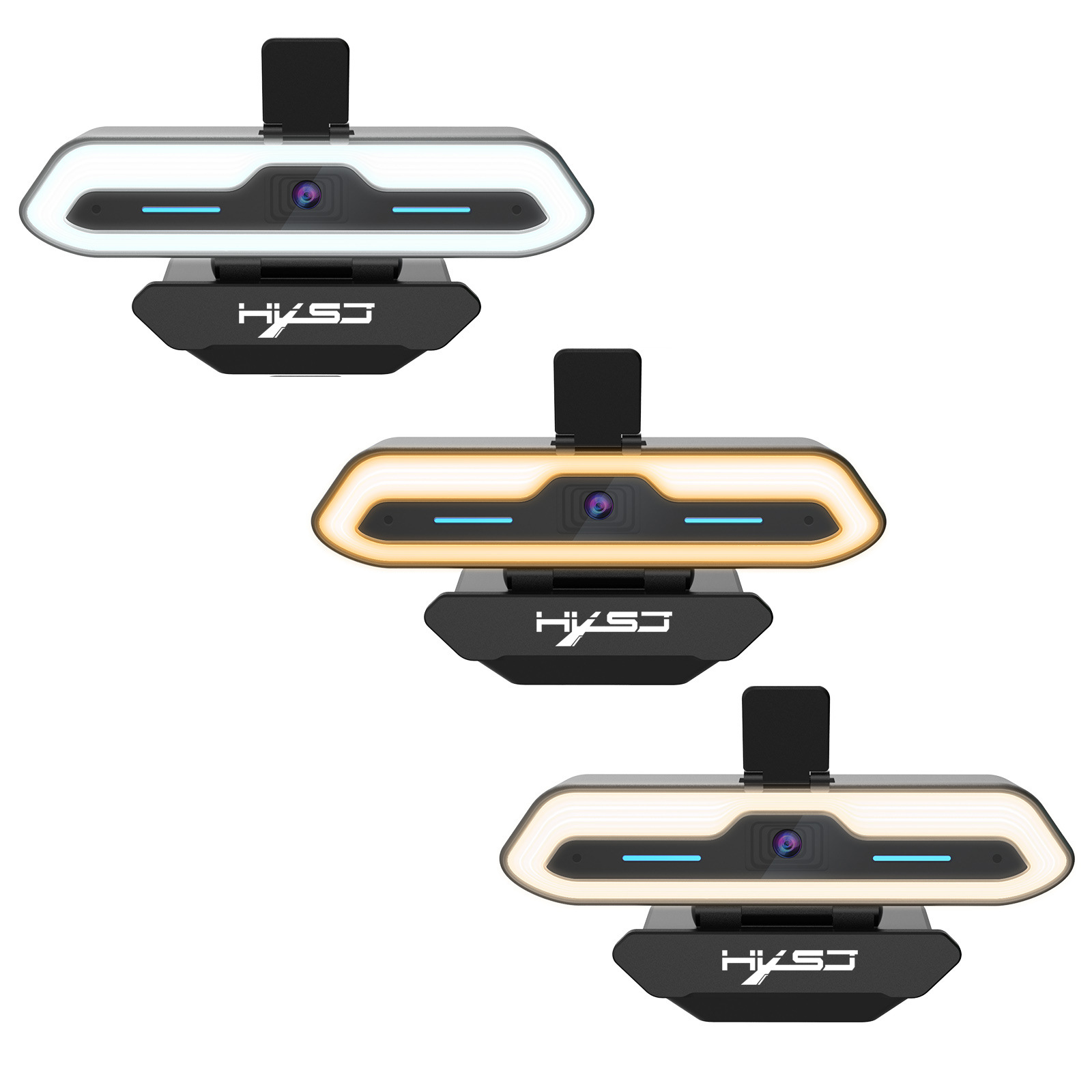
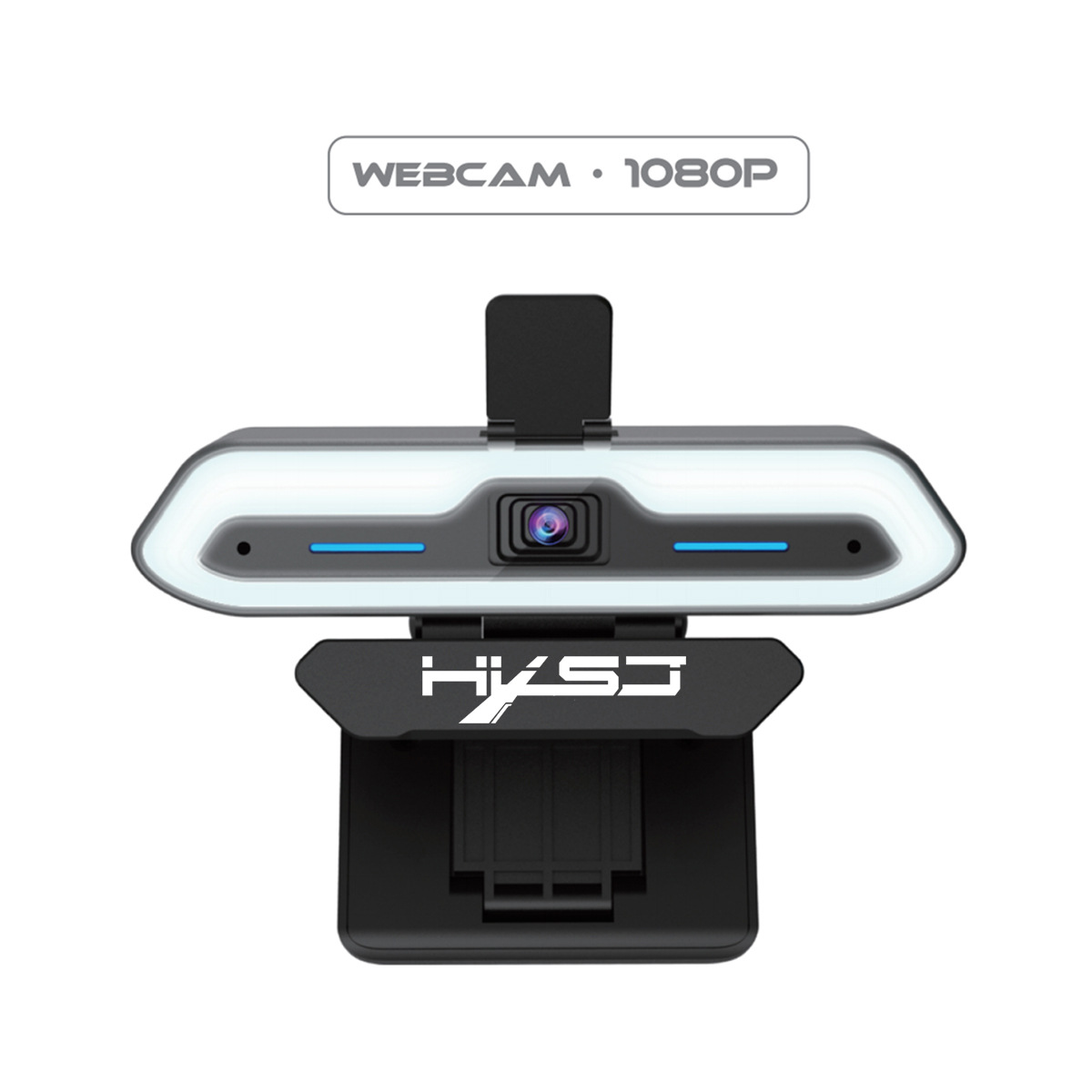
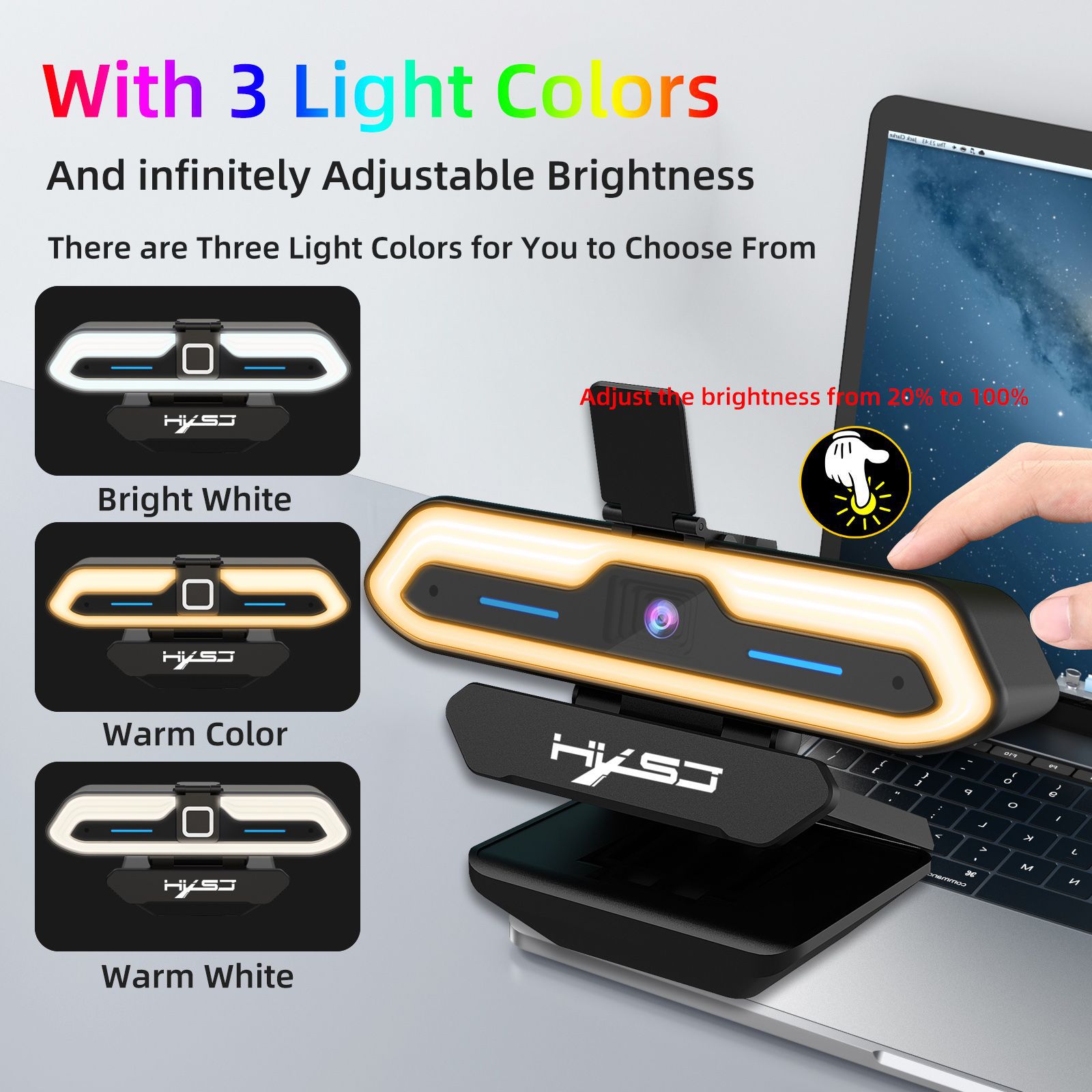
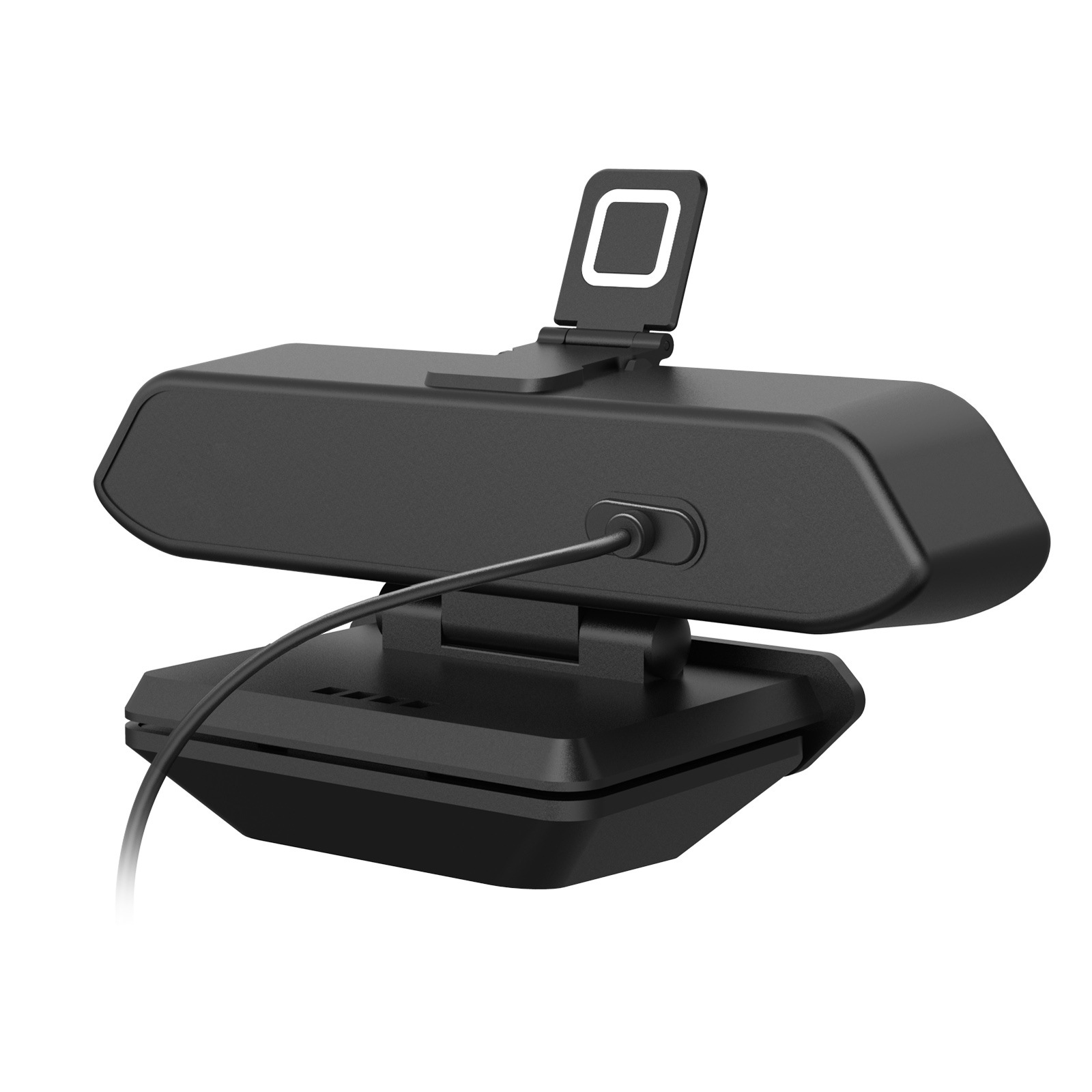
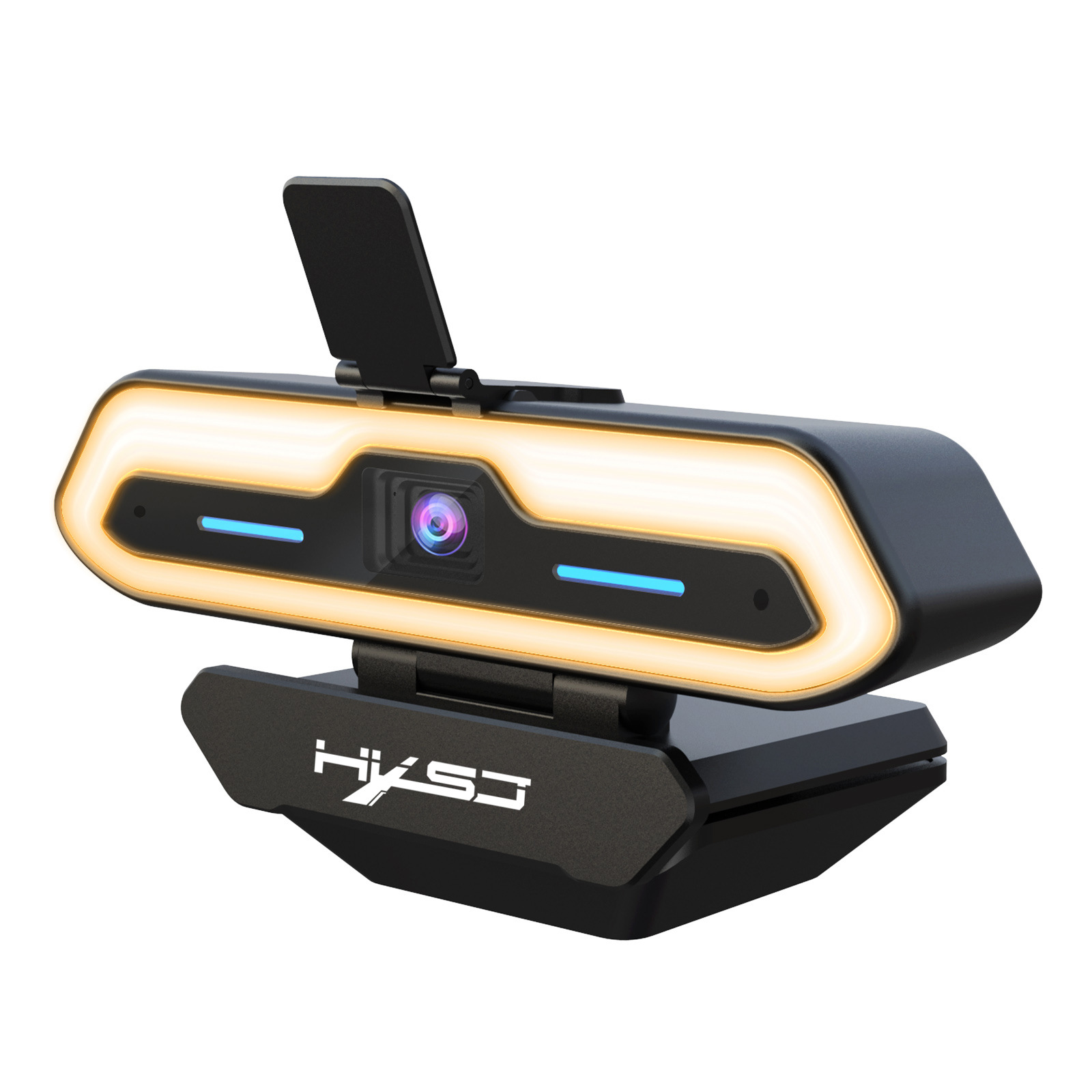
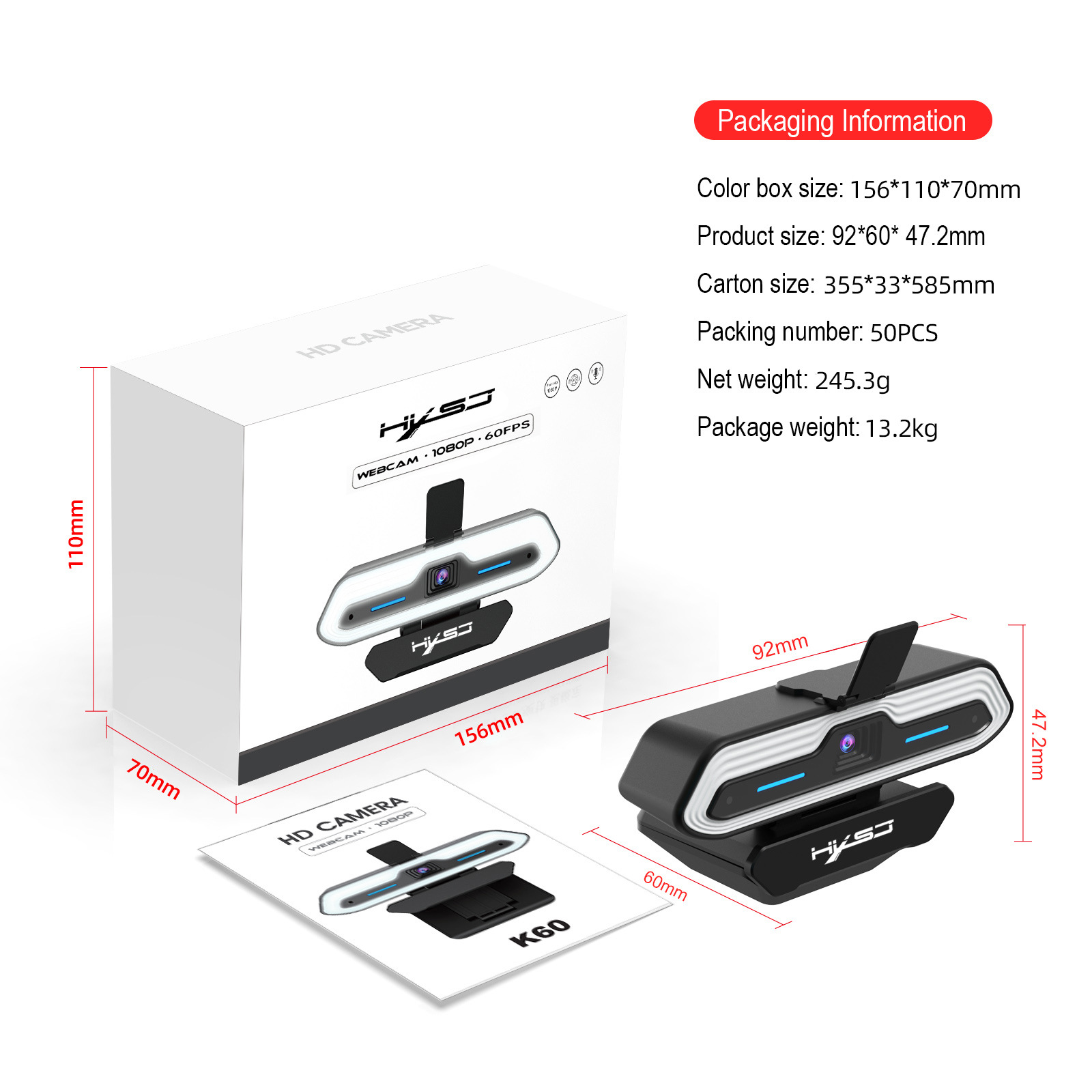
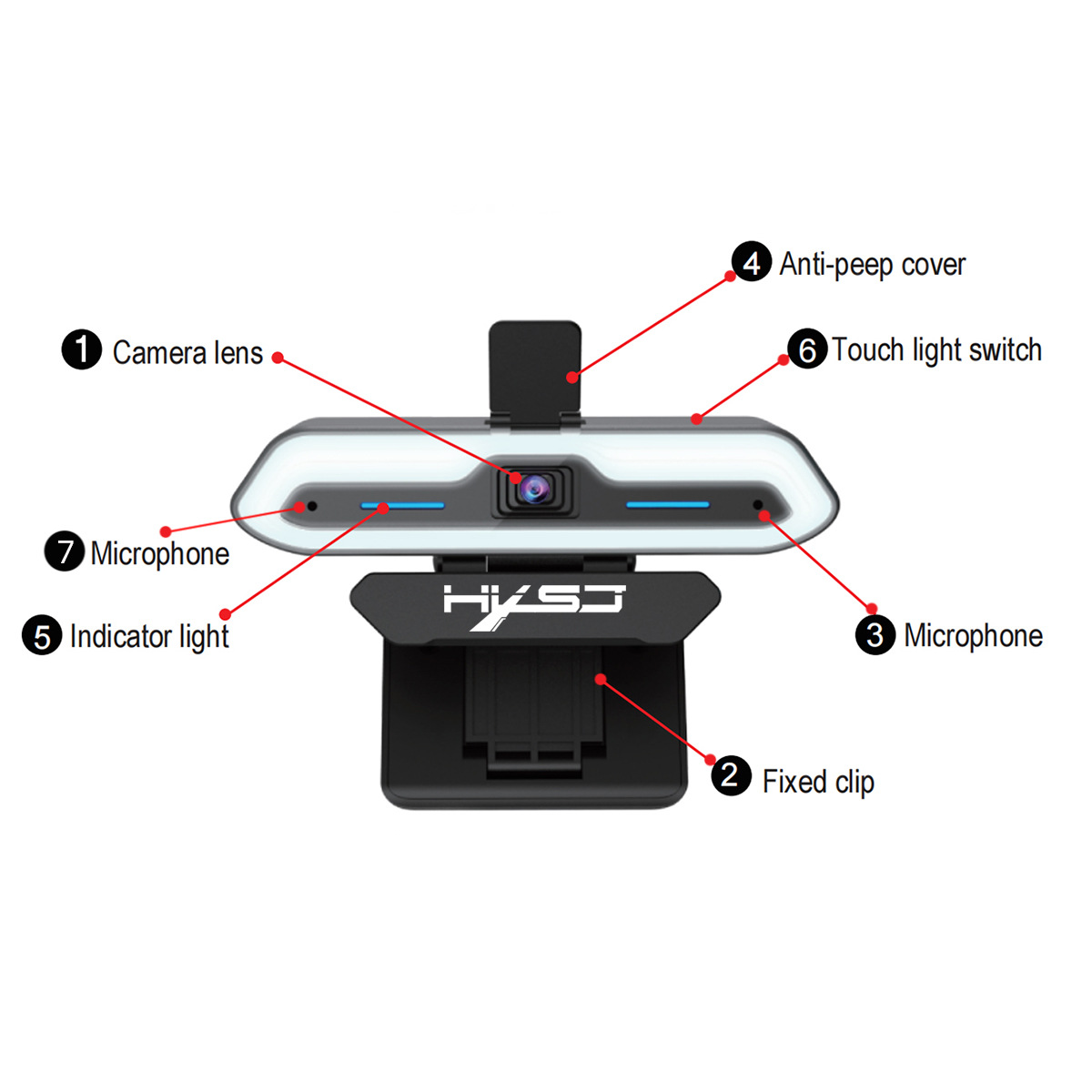
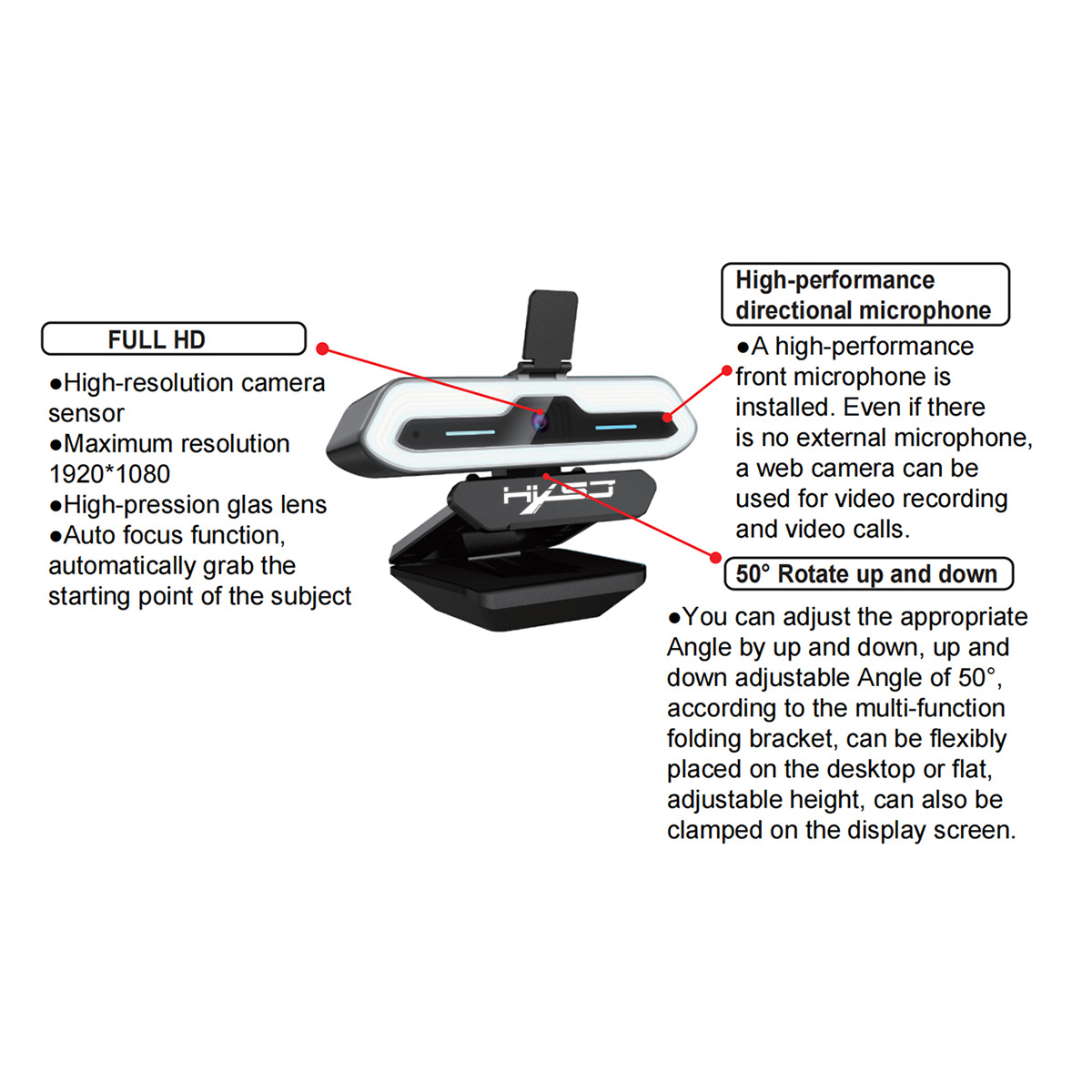
Computer camera with built-in microphone, AF autofocus, USB high-definition night vision, live streaming, video conferencing, online courses
56B06D57F7E54AA6A7C77FBF957C5B81
Product Specifications:
Photosensitive chip:CMOS 1/2.9”
Pixel Size: 2.8µm x 2.8µm
SNR max: 38 dB
Camera Focus: Fast Autofocus
Frame rate: 60FPS
Microphone: Built-in dual noise-cancelling digital microphones
Max Dynamic range: 81 dB linear mode/105 dB HDR mode
Minimum illumination:0.1Lux at F12
F/No: 2.0
EFL: 3.5mm
FOV: 80°
IR: 650±10nm
Line length: 150cm
Lens Construction:1G4P+IR
Maximum resolution and frame rate:1920*1080 (60fps@full size)、
640*480 (60fps) 1280*720 (60fps) 1280*960(60fps)
Other optional resolution ratio: YUV / MJPG
Support format: 5V±5%
USB power supply voltage: Universal USB2.0/3.0 interface
Connect the interface: 480mb/s
Operating system request:2.2W(Add fill light)
Power Consumption: 0°C to 50°C
Working temperature :-10°C to + 60°
Package List:
1 * 1080P auto focus 60FPS HD camera
1 * Six language manuals
Support System :
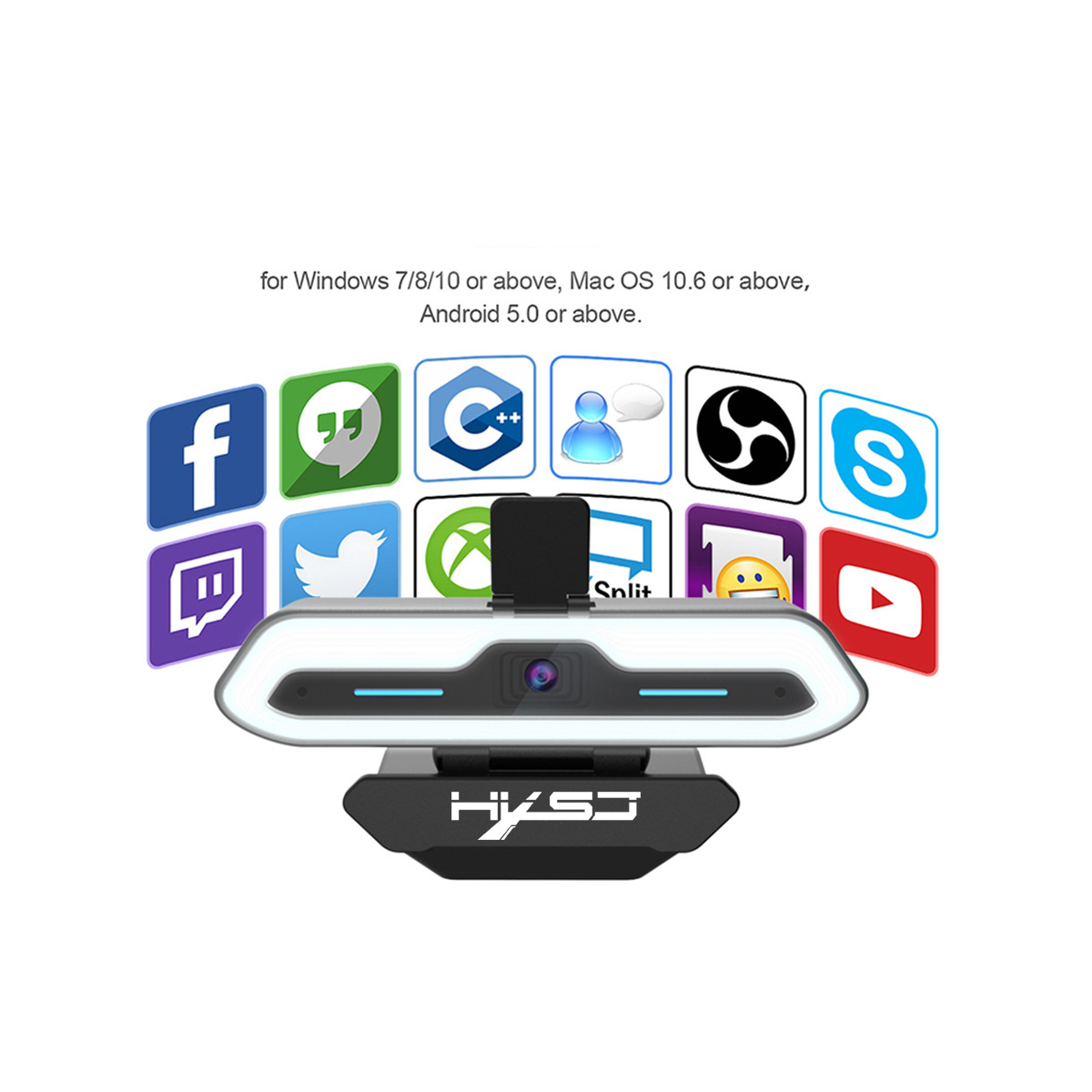
Windows XP/ VISTA/ Win7/Win8/ Win10/
Linux 2.6.24 ,Ubuntu,Mac OS 10.6,Android5.1
Instructions for use:
●USB 1080P auto-focus camera
Support all plug-ins and playback functions of Windows,
OSX/Macos and all other devices. After connecting the
camera to the USB port of the computer, you can use the
video SW to use the camera.
●To use the camera's built-in microphone, you must input
USB audio in the program settings.
●If the camera cannot be automatically recognized when the
computer is turned on, please connect another USB port and
restart the computer.
●Windows 10 users can use the camera application of OS
Emotion.
-To use the camera in other applications, you need to
activate the camera in the Windows security settings.
Precautions:
●If the network camera becomes hot after running it for a long time, it
isbest to stop using it for a while.
●Do not touch the lens with fingers or sharp objects. ·Use a clean
and softcloth when cleaning.
●Do not use in high temperature, low temperature, dusty or humid
places.
●Do not drop the camera, as the impact may cause damage to the
lens,internal malfunction or scratches on the surface of the camera.